Search Term:
Showing posts with label Iphone Tricks. Show all posts

Monday, November 16, 2009

Common iPhone Problems And Their Solutions

Common iPhone Problems And Their Solutions

If iPhone doesn't appear in iTunes or you can't sync iPhone
  1. The iPhone battery might need to be recharged. For information about charging iPhone, see "Charging the Battery" in the iPhone User's Guide.
  2. If that doesn't work, disconnect other USB devices from your computer and connect iPhone to a different USB 2.0 port on your computer (not on your keyboard).
  3. If that doesn't work, turn iPhone off and turn it on again. Press and hold the Sleep/Wake button on top of iPhone for a few seconds until a red slider appears, and then slide the slider. Then press and hold the Sleep/Wake button until the Apple logo appears.

    Note: If you enter the SIM PIN incorrectly three times, you may need to contact your carrier for a Personal Unlocking Key (PUK) to enable your SIM card again.
  4. If that doesn't work, restart your computer and reconnect iPhone to your computer.
  5. If that doesn't work, download and install (or reinstall) the latest version of iTunes.

If you can't make or receive calls, send or receive text messages, or access email or the web
  1. Check the cell signal indicator in the status bar at the top of the screen. If there are no bars, or if it says "No service," try moving to a different location. If you're indoors, try going outdoors or moving closer to a window.
  2. Check to make sure you’re in an area with network coverage. Go to your carrier's website to see network coverage areas.
  3. Make sure airplane mode isn't on. From the Home screen choose Settings, then turn Airplane Mode off.
  4. If that doesn't work, turn airplane mode on, wait 15 seconds, then turn airplane mode off again.
  5. Make sure to include an area code for every phone number in your contacts list that you use to send or receive text messages.
  6. If that doesn't work, turn iPhone off and turn it on again. Press and hold the Sleep/Wake button on top of iPhone for a few seconds until a red slider appears, then slide the slider. Then press and hold the Sleep/Wake button until the Apple logo appears.

    Note: If you enter the SIM PIN incorrectly three times, you may need to contact your carrier for a Personal Unlocking Key (PUK) to enable your SIM card again.
  7. If that doesn't work, there may be an issue with your wireless service. Call your carrier or go to your carrier's website.
  8. If that doesn't work, restore the iPhone software.
MMS: Original iPhone does not support MMS. MMS is available on iPhone 3G and iPhone 3GS if it is supported by the wireless carrier.


If iPhone won't turn on, or the display freezes or doesn't respond
  1. Press and hold the Home button for at least six seconds, until the application you were using quits.
  2. If that doesn't work, turn iPhone off and turn it on again. Press and hold the Sleep/Wake button on top of iPhone for a few seconds until a red slider appears, and then slide the slider. Then press and hold the Sleep/Wake button until the Apple logo appears.
  3. If that doesn't work, reset iPhone. Press and hold the Sleep/Wake button and the Home button at the same time for at least ten seconds, until the Apple logo appears.
If iPhone continues to freeze or not respond after you reset it
  1. Reset iPhone settings. From the Home screen choose Settings > General > Reset > Reset All Settings. All your preferences are reset, but no data or media is deleted.
  2. If that doesn't work, reset iPhone. Press and hold the Sleep/Wake button and the Home button at the same time for at least ten seconds, until the Apple logo appears restore the iPhone software.

How to make your own iPhone Ringtone and transfer it to your iPhone directly?

How to make your own iPhone Ringtone and transfer it to your iPhone directly?

Here are the steps:
  1. Open iTunes.
  2. Find the song (audio file) that you want to make into a ringtone.
  3. Decide the part of the song you'd like to use as your ringtone and make a note of the start and stop times of the song.
  4. Right-click the song and select Get Info and click the Options tab.
  5. Type in the start time of your ringtone in the Start Time text box in the minutes:seconds format. (ex. 3:41)
  6. Type in the end time of your ringtone inthe Stop Time text box. (Make sure the ringtone is no more than 40 seconds)
  7. Click OK. then Right-click the song again and select Convert Selection to AAC. Wait for iTunes to convert your song. It will create a duplicate file.
  8. Right-click the ringtone and select Delete.
  9. Click to you see the option to Keep Files.
  10. Find the file under Music > iTunes > iTunes Music and under the band's/artist's name. It will have an extension of "m4a."
  11. Replace the m4a extension of your ringtone with m4r. You can either double-click slowly to rename your file, or right-click and select Get Info on a Mac or Rename on a Windows PC.
    Note: If you are unable to rename the extension then go to Tools > Folder Options > View > and temporarily uncheck "Hide Extensions for know file types".
  12. Click use .m4r or and ignore any warnings about changing.
  13. Double-click the ringtone file. iTunes will automatically add it to your ringtones folder in your iTunes Music Library.
  14. Connect your iPhone and sync your ringtones. It should now be available on your iPhone.
If you are having trouble syncing, find the ringtone in your Ringtones folder and change the extension back to .M4A, then attempt to sync again. Then instead of deleting it, you can also drag the newly converted ringtone to your desktop from iTunes.

This will not work with songs bought from the iTunes store or that have DRM (copy protection). It's probably best to rip the song from a CD you own. Also, this may not work with the latest version of Leopard.

Thursday, November 12, 2009

100% Solution & Guide How To Activate Any Sim And Unlock iPhone 3.1.2

>>>100% SOLUTION & GUIDE HOW TO ACTIVATE ANY SIM AND UNLOCK IPHONE 3.1.2<<<

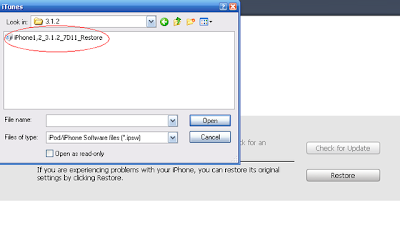
1. Restore Iphone to 3.1.2 Official Software via ITUNES

2. Run Blackra1n http://www.blackra1n.com/blackra1n.exe

- DO NOT do anything in the phone, do not make it sn0w !! Just run the program on the computer.

3. Put Iphone in Restore mode. (itune and cable on screen)

4. Restore iphone with this custom activated firmware 3.1.2

http://www.megaupload.com/?d=WQR1IZZ9 3GS

http://www.megaupload.com/?d=I7X7NM2W 3G

5. Run Blackra1n

AGAIN :
- DO NOT do anything in the phone, do not make it sn0w !! Just run the program on the computer.

6. Run Install.bat from blacksn0w no wifi
http://www.megaupload.com/?d=K17M0QWY

7. Turn off phone, turn back on again.

Phone UNLOCKED, ACTIVATED , JAILBROKEN

...BUT no signs of blacksn0w in the phone ...

Monday, November 2, 2009

How to jailbreak iphone/iPod Touch OS 3.1.2 with blackra1n RC 2

How to jailbreak iphone/iPod Touch OS 3.1.2 with blackra1n RC 2

1.Download iTunes 8


2.Restore to OS 3.1.2 via iTunes.


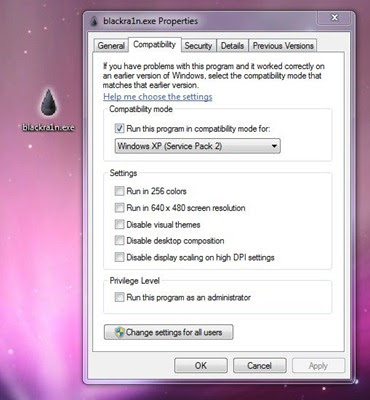
3.Once your iphone/iPod Touch has upgraded to 3.1.2, download blackra1n. Use Windows XP compatibility mode if you’re using Windows Vista or Windows 7


4.Launch the tool, and click the ‘make it ra1n’ button

5.It’ll take sometime while your iPod Touch is jailbroken. You’ll see George’s picture, which means it’s working.

6.After it’s down, it’ll restart.

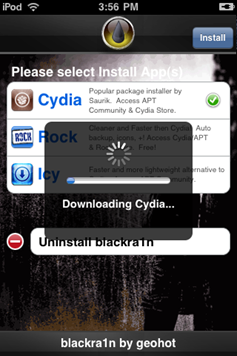
7.You should see the blackra1n icon in your apps now. Launch it.

8.From here, you can install Cydia, which lets you install jailbreak applications. There is an option to install Rock or Icy as well, which are Cydia alternatives.

Special Thanks To Ithinkdiff.com

Thursday, October 22, 2009

iPhone SDK 3.1.2 Available for Download

iPhone SDK 3.1.2 Available for Download

Apple updates iPhone development tools in tandem with iPhone OS update

iPhone SDK logo


Alongside the release of iPhone OS 3.1.2 yesterday, iPhone SDK 3.1.2 was also made available for free download via Apple’s Downloads section. For developers, instruments can now profile their application on a device via the WiFi connection, while the iPhone Development grouping now collects crash logs, install bundles, and provisioning profiles in a single location, these being just two of the changes delivered with this update.

According to the changelog for the iPhone OS 3.1.2, the update contains bug fixes and improvements, including fixes for a sporadic issue that may cause the iPhone to not wake from sleep, an issue that may interrupt cellular network services until restart, as well as a bug that could cause occasional crash during video streaming. On the SDK front, update 3.1.2 brings the following changes, according to Apple’s website:

What’s New in this Version

- Instruments can now profile your application on a device via WiFi connection. Read the release notes for instructions on how to set this up for your devices.
- Organizer: the iPhone Development grouping now collects crash logs, install bundles, and provisioning profiles in a single location.
- iPhone OS 3.1 Simulator uses frameworks more closely matching the device.

“With over 1,000 new APIs, iPhone SDK provides developers with a range of new possibilities to enhance the functionality of their applications,” the company headquartered in Cupertino, California, says. “New APIs also provide support for applications to communicate with hardware accessories attached to iPhone or iPod touch.”

In order to access the iPhone SDK 3.1 and additional technical resources and information from Apple, users must log in with a valid iPhone Developer Apple ID and password. Via the link below, those who aren’t currently registered with Apple can sign up immediately and get access to the iPhone SDK for developing iPhone and iPod touch applications.

Download Apple iPhone SDK (Free)

Quote:
Apple iPhone SDK descriptionAllows one to develop applications that run on iPhone and iPod touchWith this software you can develop applications that run on iPhone and iPod touch. Includes the Xcode IDE, Instruments, iPhone simulator, frameworks and samples, compilers, Shark analysis tool, and more.NOTE: In order to download this application, you need to log in with your Apple ID. The Apple iPhone SDK 3.1 Beta 3 is for development and testing only and should be installed on devices dedicated to iPhone OS 3.1 beta software development.WARNING: Before installing and developing with this version of the iPhone SDK, you must first upgrade your Mac system to Mac OS X v10.5.7 or later.What's New in This Release: [ read full changelog ]· Instruments can now profile your application on a device via WiFi connection. Read the release notes for instructions on how to set this up for your devices.· Organizer: the iPhone Development grouping now collects crash logs, install bundles, and provisioning profiles in a single location.· iPhone OS 3.1 Simulator uses frameworks more closely matching the device.

http://developer.apple.com/iphone/sdk1/

Sunday, October 18, 2009

Complete 3.1 Jailbreak / Unlock Guide (+ IPSW Download) Available

Complete 3.1 Jailbreak / Unlock Guide (+ IPSW Download) Available

OS 3.1 hacks still unavailable for iPhone 3GS and newer iPod touch modelsPwnageTool application icon (jailbreak & unlock tool)
Weeks into the release of iPhone OS 3.1 and months into that of OS 3.0, iPhone and iPod touch users looking to unlock and / or jailbreak their devices are still having trouble with these two otherwise simple tasks. With the help of PwnageTool 3.1, or the latest version of redsn0w, iPhone and iPod touch owners can easily hack their devices.

However, sometimes it’s easier said than done, when it comes to the iPhone and iPod touch. For those looking to jailbreak an iPhone 2G, iPhone 3G or iPhone 3GS, as well as any of the three iPod touch models available today, CultOfMac hosts what is probably the most comprehensive guide to unlocking and jailbreaking the iPhone and iPod touch to date.

Downloads are available for PwnageTool 3.1; Redsn0w 0.8;

iPhone1,1_3.1_7C144_Restore.ipsw (first-gen iPhone);

iPhone1,2_3.1_7C144_Restore.ipsw (iPhone 3G). iPhone 3Gs users are offered the iPhone2,1_3.0_7A341_Restore.ipsw for the 3.1 jailbreak that is currently unavailable on Apple’s latest iPhone model. The iPhone Dev Team (responsible for the two aforementioned hack tools) are actively working on providing a reliable jailbreak & unlock solution for iPhone 3GS and iPod Touch 2nd and 3rd generation for firmware 3.1. The guide also offers instructions on how to unlock one's iPhone in order to use a different carrier than AT&T.

Softpedia doesn't condone jailbreaking / unlocking the iPhone / iPod touch or any other device. This article has a purely informational purpose and doesn't, in any way, suggest that you should hack your Apple device. Using hacks may render your device unusable, or may reduce the quality of your experience using the respective device.

If you choose to download and install jailbreak tools, you will do so at your own risk. Unlocking / jailbreaking your iPhone / iPod touch may violate your warranty or the EULA with Apple and / or your cellular-service provider.

iPhone 3.1.2 Custom Firmware Collection [PwnageTool3.1.4]

iPhone 3.1.2 Custom Firmware Collection [PwnageTool3.1.4]
1) iPhone 3G(S) 3.1.2 - 1GB Root Partition, UNACTIVATED, Cydia, Stock Boot Logos
2) iPhone 3G(S) 3.1.2 - 1GB Root Partition, ACTIVATED, Cydia, Stock Boot Logos
3) iPhone 3G 3.1.2 - 1GB Root Partition, UNACTIVATED, Cydia, Stock Boot Logos
4) iPhone 3G 3.1.2 - 1GB Root Partition, ACTIVATED, Cydia, Stock Boot Logos
5) iPhone 2G 3.1.2 - 1GB Root Partition, UNACTIVATED, Cydia, Stock Boot Logos
6) iPhone 2G 3.1.2 - 1GB Root Partition, ACTIVATED, Cydia, Stock Boot Logos
7) iPod Touch 2G - 1GB Root Partition, Cydia, Stock Boot Logos
8) iPod Touch 1G - 1GB Root Partition, Cydia, Stock Boot Logos

Saturday, October 17, 2009

DOWNGRADE 3G IPHONE FROM 3.1 to 3.0 FIRMWARE FOR JAILBREAKING / AND UNLOCKING

PLAIN AND SIMPLE DETAIL HOW TO DOWNGRADE 3G IPHONE FROM 3.1 to 3.0 FIRMWARE FOR JAILBREAKING / AND UNLOCKING (IF bootloader 5.08)

Tested with Itunes 8.2.1
YOU MUST HAVE THIS FIRMWARE ON YOUR PC. 3.0 original

http://appldnld.apple.com.edgesuite....1_Restore.ipsw

AND USE REDSNOW 0.8

OK.

1. PUT YOUR IPHONE IN RECOVERY MODE OR DFU MODE. RESTORE IPHONE TO THIS FIRMWARE 3.0

note: You will get error 1015 and it seems like the iphone is not restored it will be in recovery mode. IGNORE this ..

2. USE REDSNOW to JAILBREAK. as you would normally

note: it may or may not seem to work. most likely the first time it will stay in recovery mode..
use redsnow again..

this time it will likely kick it out of recovery mode , if not use redsnow again.
after this. run redsnow again (YES) this time it will install Cydia.. but it wont work to start it.
Run red snow again. This time all will be completed and you will have a fully working jailbroken 3.0 firmware iphone.
It takes 4 times of running the redsnow to get it to function properly.
3. Enjoy jailbroken 3.0 firmware iphone.

Wish to unlock it ? Well it can be done if the bootloader in the phone is 5.08 ..
Heres how.

after completing step 1,2,3.

4. go to CYDIA. update cydia (complete upgrade)

5. search for packages type in "FUZZYBAND"

6. Install fuzzyband application

7. Open Fuzzyband, it will run and tell you which bootloader version you have and if it can be downgraded.

8. UNLOCK USING ultrasn0W*

Note: only a small amount of iphones have 5.08 most are 6.02 or 6.04
E
N
J
O
Y

>>>GUIDE: HOW TO USE CUSTOM FW 3.1.2 on 3GS and remain unlocked!

>>>GUIDE: HOW TO USE CUSTOM FW 3.1.2 on 3GS and remain unlocked!

1. Download 3.1.2 custom firmware from here (this version is tested and working 100% in windows)
http://www.megaupload.com/?d=WQR1IZZ9

2. Make sure your 3.0 or 3.0.1 Iphone 3GS is jailbroken.. you may use http://www.blackra1n.com/ to do so or already have done it with redsn0w.
3. Put your Iphone in Recovery Mode (the itune and cable showing on screen) (**NOT DFU** , In DFU mode you will get error 1600 )
and just restore to this holding your SHIFT button as usal to pick custom restore file.

4. Run ULTRASN0W*
NOW YOU HAVE AN UNLOCKED JAILBROKEN 3.1.2 3GS IPHONE.WITH 4.26.08 modem firmware
E
N
J
O
Y

Tuesday, September 29, 2009

Guide to Enabling MMS on iPhone 3.0 Without 3.1 Update

Guide to Enabling MMS on iPhone 3.0 Without 3.1 Update

Tutorial available for enabling iPhone MMS on your own terms


It appears there is a way to enable iPhone MMS without upgrading your firmware to version 3.1, according to a report by OS X Daily. You must simply download the carrier file that enables the functionality. AT&T’s update apparently doesn’t require the iPhone OS 3.1 IPSW (update/restore) file from Apple in order to enable MMS on second- and third-generation iPhones.

As most iPhone fanatics should know, MMS works only on iPhone 3G and iPhone 3GS, while the former doesn’t support video MMS. However, iPhone OS 3.1 is not required to enable the multimedia messaging service from AT&T, according to at least one iPhone user.

“After reading all the bad press for iPhone OS 3.1, I decided to hold out on upgrading, which means that I also can’t get MMS working, right? Wrong! The only thing you need to enable MMS on iPhone 3.0 (or 3.01) is the updated carrier file,” a person over at OS X Daily says, offering up a download via RapidShare. After downloading the “ATT_US.ipcc” carrier file, users must first ensure iTunes is closed and then type the following command in the terminal:

defaults write com.apple.iTunes carrier-testing -bool TRUE

Upon launching iTunes again, users must select their iPhone and employ the selective ‘Restore’ function by holding down the option key as they hit the Restore button. iPhone owners must then navigate to the location of the.ipcc they’ve just downloaded and select it for restoring. “The update will take a few seconds, and then all you need to do is reboot your iPhone for MMS to work with 3.0,” the author of the guide says.

The poster fails to mention whether or not iPhone OS 3.0 / 3.0.1 users are still eligible for receiving the AT&T carrier file the normal way – by connecting to iTunes and waiting for AT&T to push the update to them. After all, Apple did its MMS-support-bit with the release of iPhone OS 3.0.

Disclaimer

Disclaimer: This blog does not host any files on its server. All Mobile Phone Softwares,Wallpapers, Games, Themes Sport Links or any other stuff on this blog have been collected from various sources from Public Domains. So I am not responsible for any kind of deletion of files or copyright matters. If you are the rightful owner of anything and object to them being displayed, please COMMENT on my blog or Email us blogformobile@yahoo.com for removal.